Making Your Application UAC Aware

This article is a guide to making applications UAC aware for Vista. An application can be made Vista aware through the use of an embedded manifest.

The Manifest

<?xml version="1.0" encoding="UTF-8" standalone="yes"?>
    <assembly xmlns="urn:schemas-microsoft-com:asm.v1" manifestVersion="1.0">
    <trustInfo xmlns="urn:schemas-microsoft-com:asm.v3">
        <security>
            <requestedPrivileges>
                <requestedExecutionLevel level="asInvoker" uiAccess="false"/>
            </requestedPrivileges>
        </security>
    </trustInfo>
</assembly> 

Levels
Level Description
asInvoker Does not require elevation, runs without requesting elevation using privileges of its parent process.
highestAvailable Requests the highest available privilege tokens of its parent process. An administrator account will attempt to elevate to full administrator level, but a standard account will only request elevation to its own highest set of access tokens.
requireAdministrator Requires elevation to full administrator privileges.


Embedding the manifest into the file

In this example a manifest file saved as Foobar.exe.manifest is added to an application named Foobar.exe. Note the #1 for application.

mt.exe -manifest "Foobar.exe.manifest" -outputresource:"Foobar.exe";#1    

In this example a manifest file saved as Foobar.dll.manifest is added to a class library named Foobar.dll. Note the #2 for a code library.

mt.exe -manifest "Foobar.dll.manifest" -outputresource:"Foobar.dll";#2   
Using Visual Studio post-build command to embed the manifest

"$(DevEnvDir)..\..\SDK\v2.0\bin\mt.exe" -manifest "$(ProjectDir)Foobar.exe.manifest" -outputresource:"$(TargetPath)";#1 

References

Making Your Application UAC Aware link

Check MP3 files

Fake MP3 Detector is a small free program which can detect if the file is bad, to low quality.

Download from here

Cypern

Cypern ferie

Dejligt varmt 36 – 40 grader

Tenna uden for vores hotel.

Ja, en kold Carlsberg er jo ikke af vejen når man nu ovenikøbet kan få dem som fadøl. Ja det er mørkt men kom ikke og tro at det ikke er VARMT det er stadig nogle og 30 grader.

En tur med bade båden.

Lidt mad på stranden i skyggen… Næsten 🙂

En tur i det varmeste vandland vi har været i. Vandet var så varmt at man næsten brændte sig på det når man skulle i.

Vores lille møde med et par pelikaner ved stranden.

De stiller gerne op til et lille portræt billede

MSI installer

Here is a short description of how the MSI installer in Visual Studio works.

Klik Here

Programs for Vista Media Center

There is a lot of programs for windows vista media center. below are some i have testet.

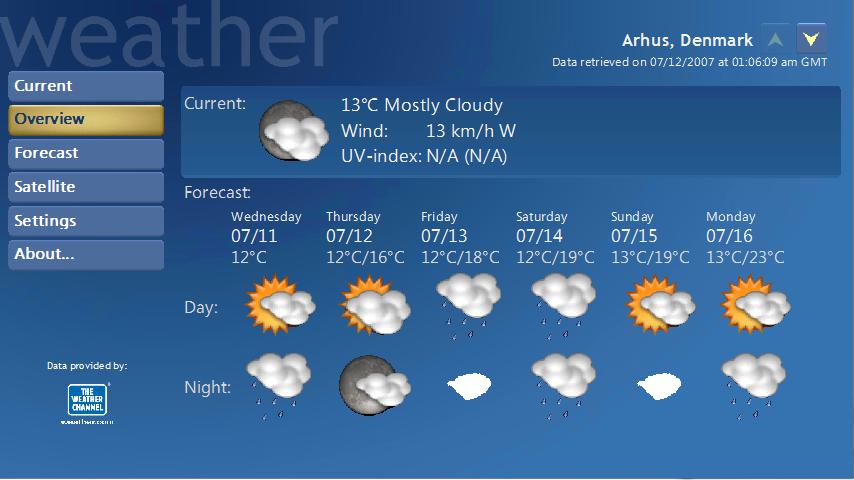
Mce Weather

Program for showing wetherforcast in media center. Link

Webguide4

Greate program for controlling the media center guide and sharing the content from the mediacenter to other computers. Link

SystemMonitor for Vista media center

A system monitor. Makes it posibel for you to see the tmp and rpm for you motherboard in the media center.
Requers speedFan. Link

DVRMSToolbox

Tool for removing commercials from recordings. Skipping of commercials when showing. Link

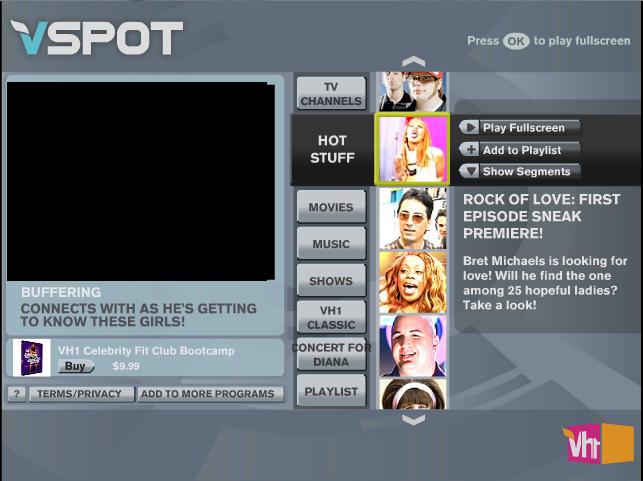
VSpot

Enables showing of online content: Music, Movie Trailers and more. Link

AOL for Media Center

AOL services for media center. A lot of free radios, Music Movies, Picture sharing and More movies comming soon. Link

Remove Source Safe Bingings from Projet and solution

There is two ways to remove the source safe binding.

  • Use Visual Studio to remove the binding
  • Manual remove.
Use Visual Studio
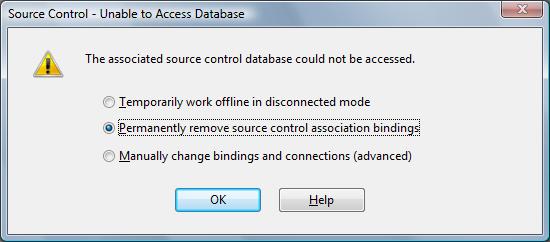
  • Start visual studio without acces to the source safe server

  • Select the Permanently remoce source control association bindings
  • Klik ok.
Manual remove

1 – Go to the folder containing the solution files and delete the following:
          mssccprj.scc
          MyProject.vssscc
          vssver.scc

2 – Open MyProject.sln in your favorite text editor and remove the following section:
          GlobalSection(SourceCodeControl) = preSolution
                     …
          EndGlobalSection

3 – Go to the folder containing the project files and delete the following:
          MyProject.vbproj.vspscc
          mssccprj.scc
          vssver.scc

4 – Open MyProject.vbproj in your text editor and remove the following lines:
          SccProjectName = "SAK"
          SccLocalPath = "SAK"
          SccAuxPath = "SAK"
          SccProvider = "SAK"

Now you can open the solution/project with no source control errors.

General questions about Windows Vista

I found a site going through some of the gennerl questions you may have about setting up windows vista.

The page is located here.

Auto Login to Windows Vista

If you use your windows vista as a media center, you properly want it to start automatically without asking for login password.

To enable auto login for vista

  1. Go to Start then Run (or press the Windows key + R), type in control userpasswords2 then press OK.
  2. At the top of the dialog box, untick the option saying “Users must enter a username and password to use this computer”.
  3. Click Apply – a new dialog comes up.
  4. Enter the username and password (twice) of the user you wish to auto-login with.
  5. Click OK and OK again.

Now the computer is setup to auto logon with the user you entered. This makes it posibel for you to use remote desktop to the computer with this user witch is not posibel if you had made the user without a password.

Enable Remote desktop in Vista Home Premium and Concurrent Sessions

Remote desktop is only supported in Windows Vista Buisness and Windows Ultimate, so if you fx have a Windows Vista Home Premium you can’t connect to it with the Remote Desktop Connection.

To enable remote desktop follow the guid:

Steps to Add Remote Desktop to Vista Home Premium:

  1. Download termsvr.zip here
  2. Extract Termsvr.zip to a temp directory
  3. Start “Command Prompt” in Administrator mode (Run As Administrator)
  4. Run the corresponding batch file for your Vista edition
  5. Allow TCP Port 3389 on Windows Firewall or any other firewall product.
  6. Done


You can also enable the Concurrent Sessions in Vista, this means that you can connect to the computer at the same time as an other user is using the computer. Klik here

Windows Media Center SDK

Getting started with developing applications for windows media center.

Requerments

To develop applications for windows media center you need to have
the Windows Vista Home Premium or Windows Vista Ultimage installed.

For creating an application you need the Microsoft Visual Studio installed.
You need the .Net 2.0 Fremwork as well.

Steps
  • Download the windows media center sdk. SDK
  • Create a project. Under Virtual C# – Windows Media Center
    • Windows Media Center Presentation Layer Application
  • Add reference to Microsoft.MediaCenter.dll – this dll has the classes for
    the Media Center functionality.
  • ….
Registration of the Application in the Media Center

First the assembly has to be signed, because it has to go into the GAC

<application title="Windows Media Center Step By Step" id="{[GUID2]}"> 
          <entrypoint id="{[GUID3]}"
                  addin="MyProject.MyProject, MyProject,Culture=Neutral,Version=1.0.0.0,PublicKeyToken=[PublicKeyToken]" 
                  title="Step By Step"
                  description="A Windows Media Center Application"
                  ImageUrl=".\StepByStep.png"> 
                  <category category="More Programs"/>
          </entrypoint>
</application>

Installing the Application

First the assembly has to be installed in the GAC

gacutil.exe /if "Assembly name.dll"

References

Top