Problem loading solution Security exception

I discovered a problem with loading projects which had been compressed into a zip file. When I try to unzip and open the solution Visual Studio comes up with a Security Exception.

1

I found out that if I marked the solution and all the projects in this solution as Unblock in the properties of the files Visual Studio will then load the project again as normal.

2

AD-Remover for Windows Messenger Live

Here are three programs for removing and customizing messenger

External Screen reinitialize problem

If the additional external screen causes the computer to turn flash the screen this reg key can disable the initialize:

HKEY_LOCAL_MACHINE\SOFTWARE\Microsoft\TMM
navn: PollingInterval
type: REG_DWORD
data: 0xffffffff

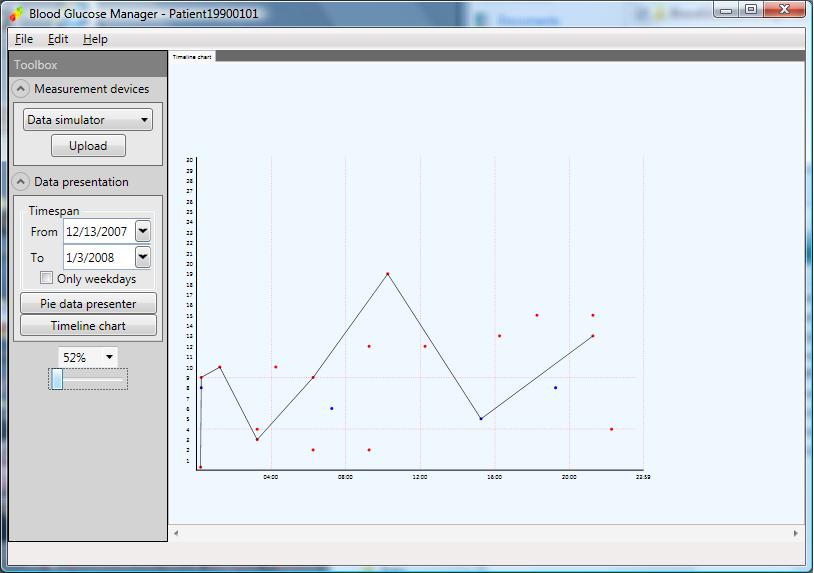
Blood Glucose Manager

Motivation for building the application

As I mentioned in this blog post Precision Link Xceed protocol I wrote some code to upload the measurements from the device I lead me to the decision to try adding the data to the data file of the Precision Link program. I decided to take another approach. This application is a program like the Precision Link but it is constructed with a plugin structure which enables for easy extension of the program.

Description

Blood Glucose Manager is a tool build in .net 3.5 with a WPF userinterface. The main focus of the project is to build an application that can manage blood glucose readings. It is designed to use reflection which makes it easy to extend the various types of readers (The glucose measurement devices ‘hardware’) supported and likewise extend the application with additional views on the readings returned from the devices

The project is hosted at CodePlex.com as a open source project. link


I will extend this post later on with additional information about how to make extensions (plugins) for this application.

Precision Link Xceed protocol

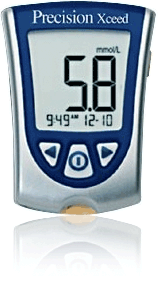
I have a Precision Link Xceed device. It is a fine measurement device and it can be connect to the pc to transfer measurement to a software program to analyze the measurements.

Precision Link Xceed Device

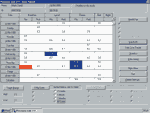
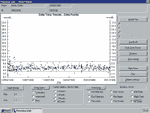
All that is fine but there is a problem the software program is not supported on Windows Vista and i looks like it’s made for windows 95. Shown below


Program specifications:

Microsoft Windows 98/2000/NT/ME/XP  
At least 50 MB free hard drive
1 serial port or USB-port (adapter required)
Download software (Precision Link Version 2.5)

Deployment of alternative solution

I tried this program on Windows Vista with a Sandberg USB to serial adaptor with a USB driver from windows update – and I was so lucky to try a BLUE SCREEN in Vista which haven’t seen before. And another drawback in the program is that the serial ports are not detected they are hard coded so my USB adaptor on port COM 10 could not directly be used 🙁

I then decided that it must be possible to upload the measurements from the device my self. I searched the Internet but could not find any documentation on the protocol used with the device. I then took my old pc and installed a serial watcher program so I could see all the traffic witch occurred between the program and the device.

After some testing and analyzing I came up with a little code in C# witch can connect to the device and return all the readings in the device.

Here is a link to a project witch includes the code.

Some specifications on the communication:

  • Port settings
    • BAUD_RATE = 9600
    • DATA_BITS = 8
    • STOP_BITS = One
    • PARITY = Parity.None
    • DtrEnable = true
    • RtsEnable = true
  • Commands
    • “1ID”
    • “1GET_METER”
    • “1GET_EVENTS”

Walkthrough: Hosting a Windows Forms Control in Windows Presentation Foundation by Using XAML

How to add a Windows form control to a WPF project in XAML.

  • Add WindowsFormsIntegration assembly to your project
  • Add Windows Forms assembly
  • Now you can use the controls

In your Window add:

xmlns:wf=”clr-namespace:System.Windows.Forms;assembly=System.Windows.Forms”


Now the controls can be used like:

<WindowsFormsHost>

<wf:MaskedTextBox x:Name=”mtbDate” Mask=”00/00/0000″/>

</WindowsFormsHost>


Source: Link

Julehilsen fra Tim Dam – afghanistan

Her er et ud klip af Interview med Tim fra P4.

Tim Julehilsen_Only.zip (3,33 mb)

C# Settings

How does the settings included in the .NET Framework.

There is two types of settings:

  • User
  • Application


User

The user settings can be edited when the application is running.

Those settings are stored in the app.config but if the user edits them they are ‘surprisingly’ not stored in the app.config again but they under the current user in a user.config file witch only contains the User settings from the app.config.

Location of the user.config file:

During runtime, each individual user (of your computer) will maintain his/her own copy of the app.config file, which will be named user.config. This file can be found within the following directory:


C:\Documents and Settings\USER\Local Settings\Application Data\<Project Name>

In my case, it is:


C:\Documents and Settings\MY USER\Local Settings\Application Data\AppSettingsInCS

Within this folder, you will find another folder, named something like:


AppSettingsInCS.vshost.ex_Url_dcjtbf3vhoeael5lvzjkefwbzccd3hbz

And within this folder, you will find a folder based on the version number of the application (in my case it is 1.0.0.0).

Application

Settings of this type are shared between all users and can’t be edited when the application is running.


For more info look at the msdn or this page

Free PDF Reader

Here is a free PDF Reader like Adobe Acrobat Reader but just a lot faster:

Download Here

Certificates for WCF – MakeCert.exe

If you have to create a certificate to use under developing an application here is some good links:

Creating Test Certificates with Makecert.exe

Creating A Private Key-Public Key Pair

Top