Trip to London

We took a few days in London since I already where there because of a Workshop in Southampton.IMG_1608

Think this lion looks a bit sad. But then again it’s raining.


IMG_1172 IMG_1195 IMG_1366

Then there was the “Man on a stick” aka Lord Nelson on Trafalgar Square.


IMG_1409 IMG_1378 IMG_1468

Buckingham palace and the tower bridge.

IMG_1354 IMG_1611 IMG_1722

And yes of cause the tower bridge is under repair for OL when I have to take a picture of it.

IMG_1725 IMG_1778

Well even the cats had nice beds on HMS Belfast.


IMG_1865 IMG_1870 IMG_1902IMG_1877

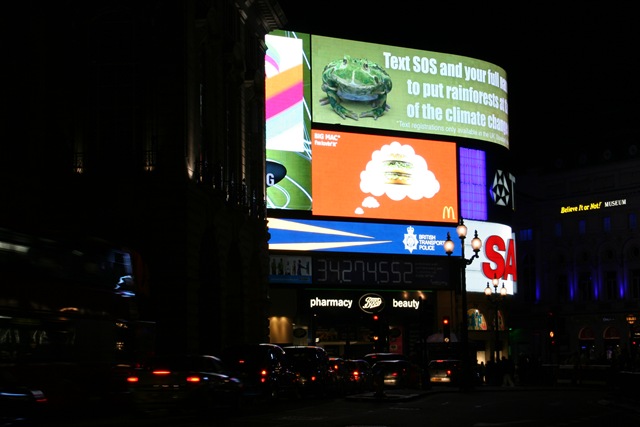
A few night shoots of Piccadilly Circus at night.

IMG_1504IMG_1501

A quite big Apple store they have placed in London.

Environment variables in Ubuntu

The following is a exstract from Ubuntu help

The can be used to set enviroment variables in the terminal: ~/.bashrc

Session-wide environment variables

In
order to set environment variables in a way that effects a user's
entire desktop session, one may place commands to set their values in
one of the "hidden" script files in the user's home directory. The more
common such files are outlined below.

  • ~/.profile
    – This is probably the best file for placing environment variable
    assignments in, since it gets executed automatically by the DisplayManager during the startup process desktop session as well as by the login shell when one logs-in from the textual console.

  • ~/.bash_profile or ~./bash_login
    – If one of these file exist, bash executes it rather then "~/.profile"
    when it is started as a login shell. (Bash will prefer
    "~/.bash_profile" to "~/.bash_login"). However, these files won't
    influence a graphical session by default.

  • ~/.bashrc
    – Because of the way Ubuntu currently sets up the various script files
    by default, this may be the easiest place to set variables in. The
    default configuration nearly guarantees that this file will be executed
    in each and every invocation of bash as well as while logging in to the
    graphical environment. However, performance-wise this may not be the
    best thing to do since it will cause values to be unnecessarily set
    many times.


System-wide environment variables

Environment
variable settings that effect the system as a whole (rather then just a
particular user's desktop session) can be placed in any of the many
system-level scripts that get executed when the system or the desktop
session are loaded. Ubuntu defines several locations dedicated to
placing such settings:

  • /etc/profile
    – This file gets executed whenever a bash login shell is entered (e.g.
    when logging in from the console or over ssh), as well well as by the
    DisplayManager when the desktop session loads. This is
    probably the file you will get referred to when asking veteran UNIX
    system administrators about environment variables. In Ubuntu, however
    this file does little more then invoke the /etc/bash.bashrc file.

  • /etc/bash.bashrc – This is is the system-wide version of the ~/.bashrc file. Ubuntu is configured by default to execute this file whenever a user enters a shell or the desktop environment.

  • /etc/environment
    – This file is specifically meant for system-wide environment variable
    settings. It is not a script file, but rather consists of assignment
    expressions, one per line. Specifically, this file stores the
    system-wide locale and path settings.

Mount Linux ext3 USB pen on Windows

Here is a driver for windows which can mount a USB pen formated in ext3 for Linux under windows.

 Link

Ext2Fsd-0.46.zip (949.07 kb)

Portable FTP Server

Here is a portable FTP Server for Windows which only is 400K.

Quick’N Easy FTP Server Lite

QuickNEasyFTPServerLite

Source reference

Direct download: Link

Windows Live Messenger 9 – Vista frame disable and AD-server block

Hide system frame

By default the system frame of messenger is shown in windows. To disable it do the following:

  1. Open regedit
  2. Navigate to:
    1. HKEY_LOCAL_MACHINE\SOFTWARE\Microsoft\Windows Live\Messenger
  3. Create a new DWORD named: AeroWindowFrameEnabled
    1. Value = 0 frame is disabled
    2. Value = 1 frame is shown (default install)

Link to source


Disable Messenger AD-servers

Go to the host file and redirect the following URL to local host or nowhere:

0.0.0.0      rad.msn.com
127.0.0.1  global.msads.net
127.0.0.1  rss.video.msn.com
127.0.0.1  ads1.msn.com
127.0.0.1  rad.live.com
127.0.0.1  specials.uk.msn.com

Host file is located in: system32/drivers/etc

Link to source

Get Java version from Class file

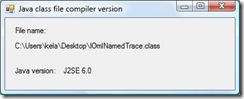
Here is a small program to extract the java compile version from a java .class file.

It is based on the info from: http://en.wikipedia.org/wiki/Class_%28file_format%29

JavaClassFileCompilerVersion

JDK   v   d   HEX
———————–
J2SE 6.0=50 – 32
J2SE 5.0=49 – 31
JDK  1.4=48 – 30
JDK  1.3=47 – 29
JDK  1.2=46 – 28
JDK  1.1=45 – 27

Microsoft Outlook 2007 problem with Calendar – CPU usage 100%

If Outlook has a CPU usage of 100% when trying to view the calendar some command line arguments can be used to start outlook in a mode where it startup and performs some maintenance tasks.

In my case outlook suddenly no longer was able to view the calendar view. I solved it by starting outlook with the arguments below.

  • /cleanreminders – Clears and regenerates reminders.
  • /cleanrules – Starts Outlook and deletes client- and server-based rules.
  • /cleanviews – Restores default views. All custom views you created are lost.
  • /cleansniff – Deletes duplicate reminder messages.
  • /cleanserverrules – Starts Outlook and deletes server-based rules.
  • /resettodobar – Rebuilds the task bar. (Removes double tasks if any)

Source: http://office.microsoft.com/en-us/outlook/HP010031101033.aspx

Example:

"C:\Program Files\Microsoft Office\Office11\Outlook.exe" /Cleanreminders

Windows xp black theme like Windows Vista

Here is a Theme for Windows Xp in black that looks like Windows vista.

http://klauskjeldsen.dk/2007/05/02/windows-xp-vista-theme-black/

Royale Noir.zip (429.68 kb)

Just place the folder in:

C:\Windows\Resources\Themes\

and klick the style file.

Beagleboard

I recently bought a new toy. A Beagleboard from http://beagleboard.org/

It’s a small board with a OMAP3530 processor, OpenGL ES 2.0 capable 2D/3D graphics accelerator, HD video capable TMS320C64+ DSP etc.

 beagleboard-prod-img

Different projects exist to e.g. port debian and ubuntu to this small device.

Relevant links:

Windows Vista Media Center Playback device Manager

Here it a small plug-in for Windows Vista Media Center that enable you to change the sound device used to play back sound in Vista. Since I have both a standard audio cable and a HDMI connection I need to change between them. This can be done with this plug-in through the Media Center with the remote.

Enjoy.

Download


The plug-in will look like this in Windows Media Center:


And Inside the plug-in there will be a list of sound devices you can select. In the below example only one device ("Speakers") is shown since it's from a Virtual PC.


AudioManager.zip (587.79 kb) – source

Top